Data capture
The subject matrix
Each study’s home for site staff is the subject matrix: subjects as rows, scheduled events and forms as columns, with each cell showing that form’s workflow state. Coordinators enroll subjects here and jump straight into entry.
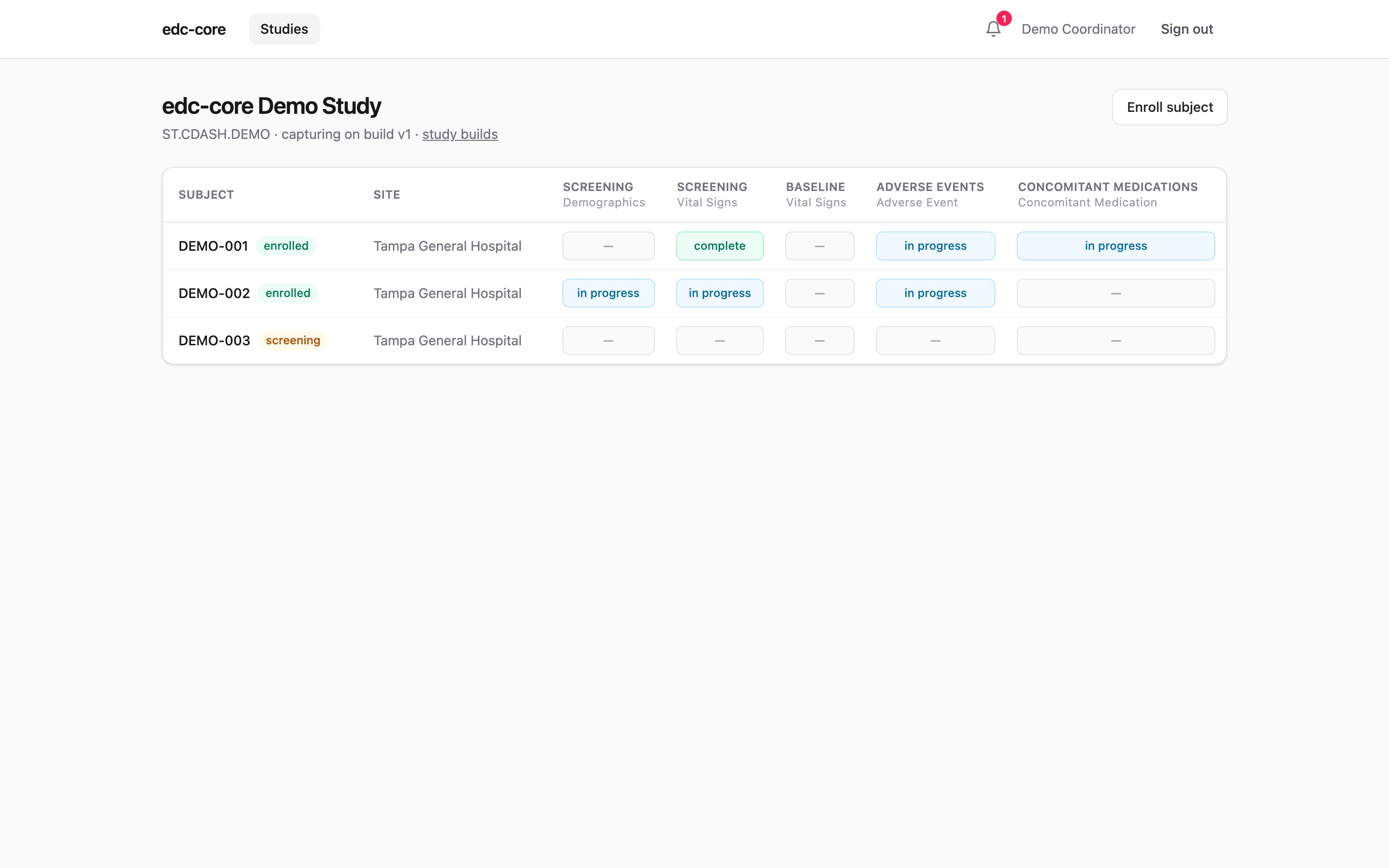
Site-scoped roles (coordinator, investigator) see only their site’s subjects; study-scoped roles (data manager, monitor) see all sites.
Subject lifecycle
Every subject carries a lifecycle status shown next to their key: screening, enrolled, screen failed, completed, or withdrawn. Adding a subject enrolls them directly by default, or registers them in screening if your workflow separates the two. Transitions are a site act (the subject.enroll permission, scoped like enrollment itself) and follow the expected paths: screening → enrolled or screen failed; enrolled → completed or withdrawn. Screen failure and withdrawal require a reason, which lands in the audit trail alongside the old and new status; reinstate undoes any terminal status (also with a required reason), returning the subject to where they came from.
Transitions happen inline on the matrix: the menu next to the subject’s badge offers only the moves the current status allows, and terminal moves prompt for their reason before anything is recorded.
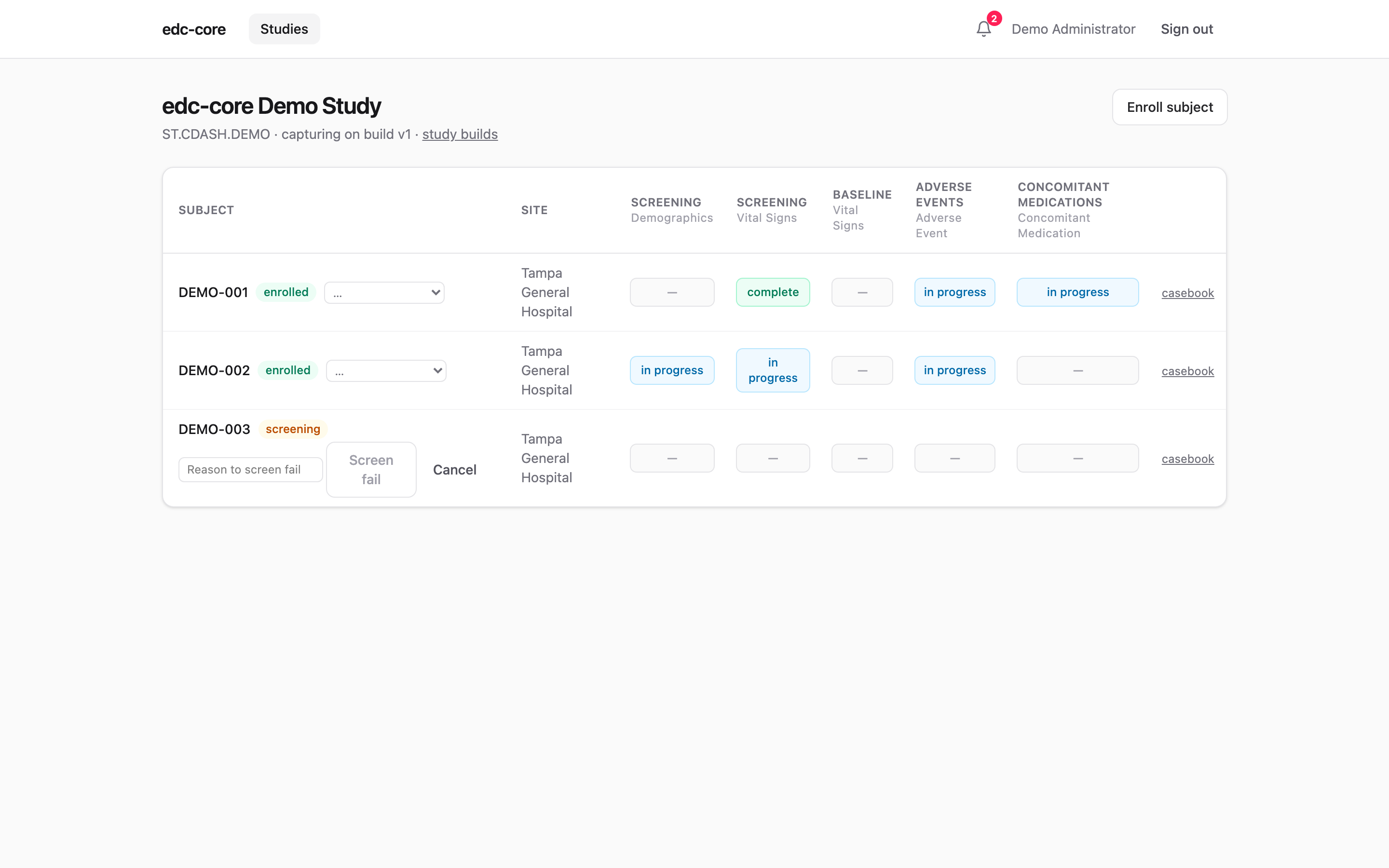
To walk the whole cycle in the demo: as demo-coord, register a new subject with status screening, Enroll them, then Withdraw… with a reason, and finally Reinstate… (reason again). Each transition, with its reason and the old and new status, is now in the audit trail, and the matrix badge tracked every step. Each subject’s row also offers their PDF casebook for download (with export.data).
Two deliberate boundaries:
- Status is disposition, not a lock. A withdrawn subject’s forms stay editable: the withdrawal visit still gets keyed and open queries still get resolved. Editability is governed by form workflow states and locks, exactly as before.
- Structured disposition data belongs on a CRF. The status drives the matrix, casebook cover, and the
subjectstable in the analytics lake (so disposition counts are oneGROUP BYaway). The withdrawal date, reason category, and similar analysis variables should be items on a disposition form, where they get audit, edit checks, and exports like any other data.
Entering data
CRFs render directly from the study build’s metadata: field types, required flags, units, and codelists all come from the ODM item definitions. Failing edit checks surface immediately as you type, before anything is saved.
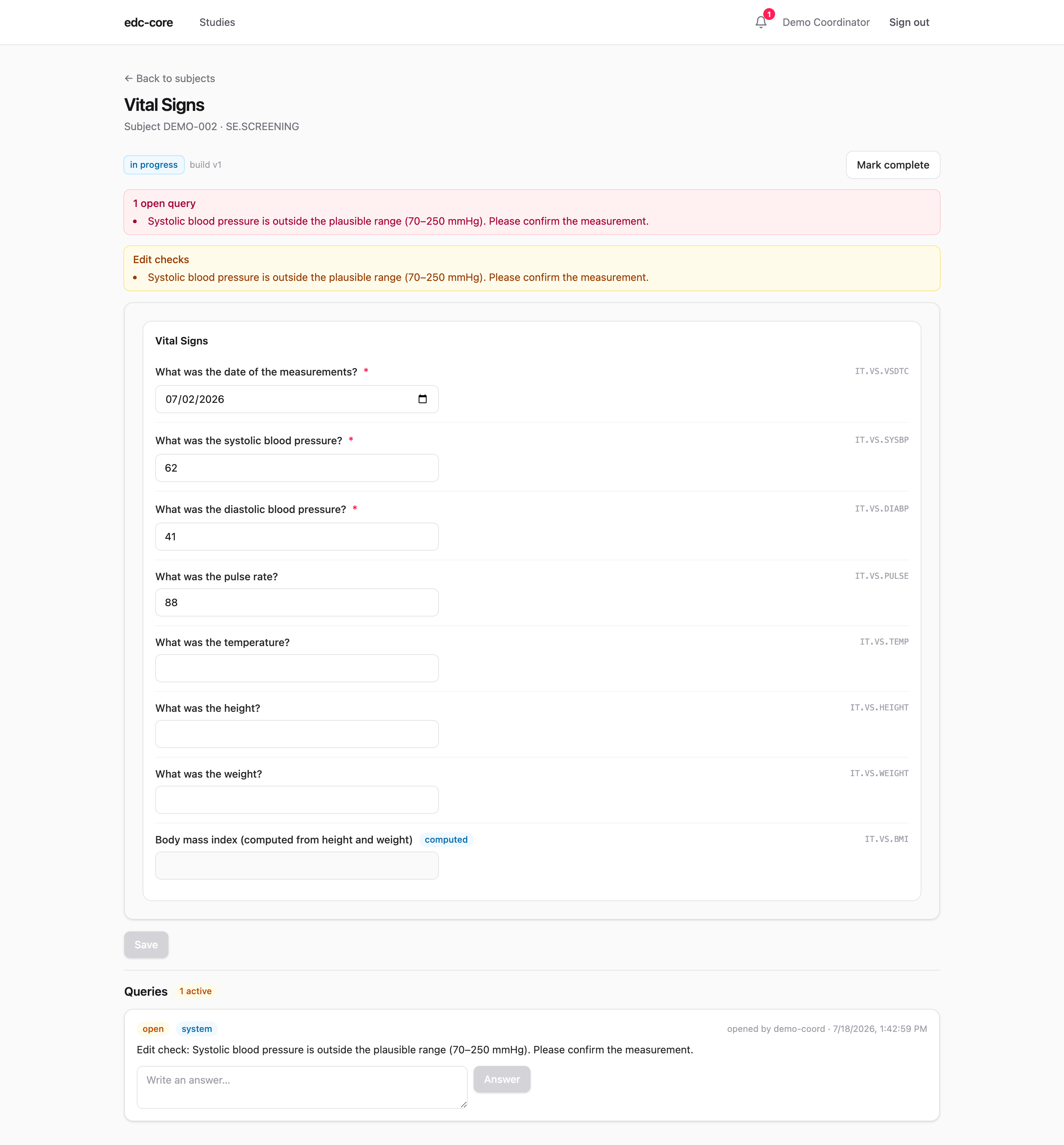
Saving writes each item value as a new immutable version row, in the same database transaction as its audit event. Changing a saved value requires a reason for change, and the previous value is never overwritten; the full version history stays queryable and appears in the audit trail.
Values can also arrive in bulk from a central lab’s batch file, through the same audited write path; see Lab data import. Verbatim AE and medication terms entered here are standardized later by data management; see Medical coding.
Conditional and computed fields
Builds that use dynamic fields change the form as answers land, evaluated instantly in the browser and re-checked by the server on every write:
- Skipped fields disappear. A field whose collection exception is true is simply not shown; a section whose every field is skipped hides entirely. Change the controlling answer back and the field returns.
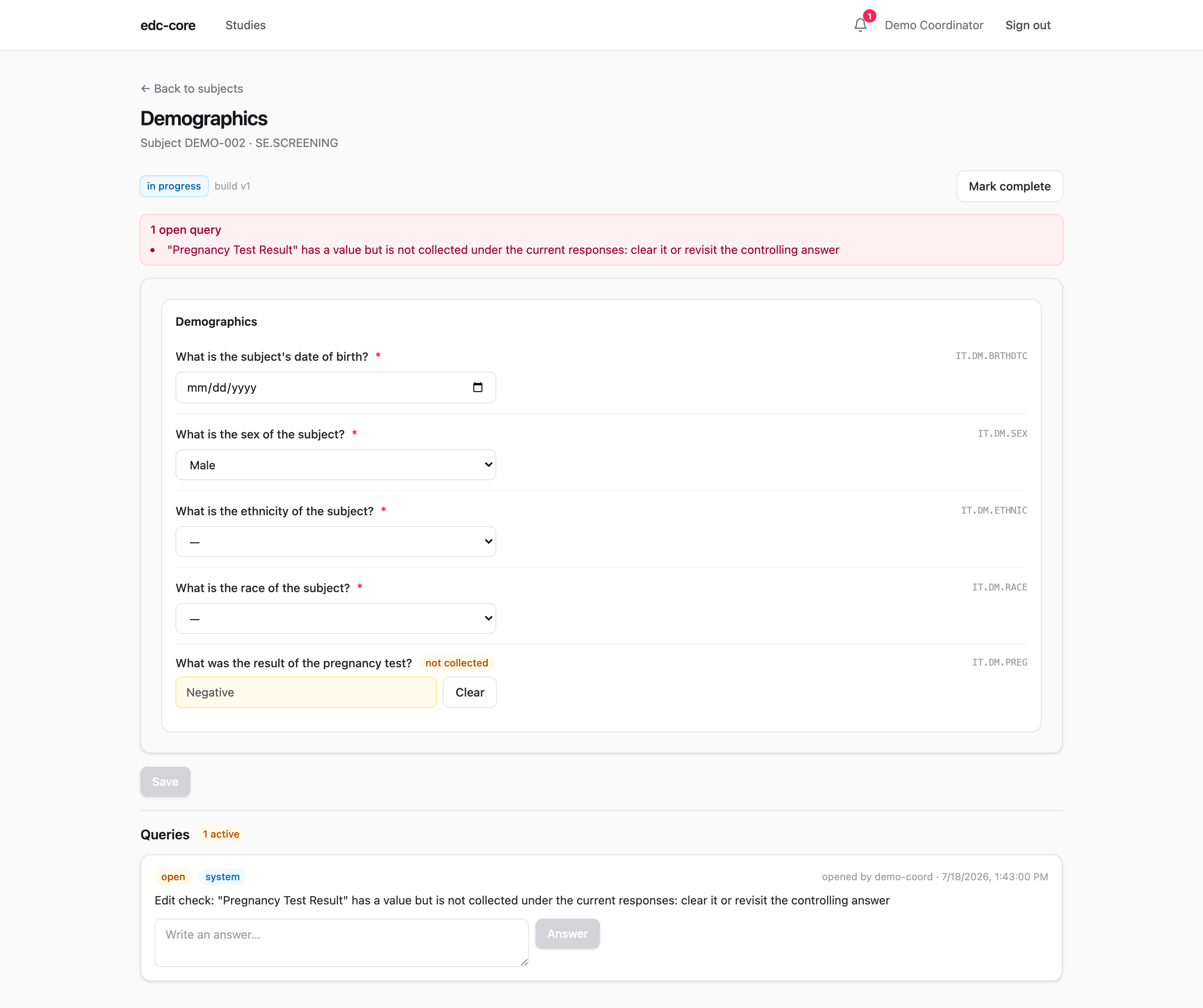
- Values already saved are never silently deleted. If a saved value’s field becomes skipped (say, sex is corrected after a pregnancy test was recorded), the value stays visible read-only with a not collected badge and a Clear button, and a system query stays open until the site either clears the value (a normal audited correction, reason required) or changes the controlling answer back. The server rejects any other write into a skipped field.
- Dependent options narrow. Options excluded under the current responses drop out of the choice list. A saved value whose option was later excluded stays visible, marked “no longer available”, rather than leaving the field blank.
- Computed fields are read-only. Derived items show a live preview with a computed badge as you type their inputs; the stored value is always the server’s own calculation, written through the audit trail as
item_value.derived. Entering into a computed field is rejected — on every path, including lab import and RTSM intake.
Repeating item groups
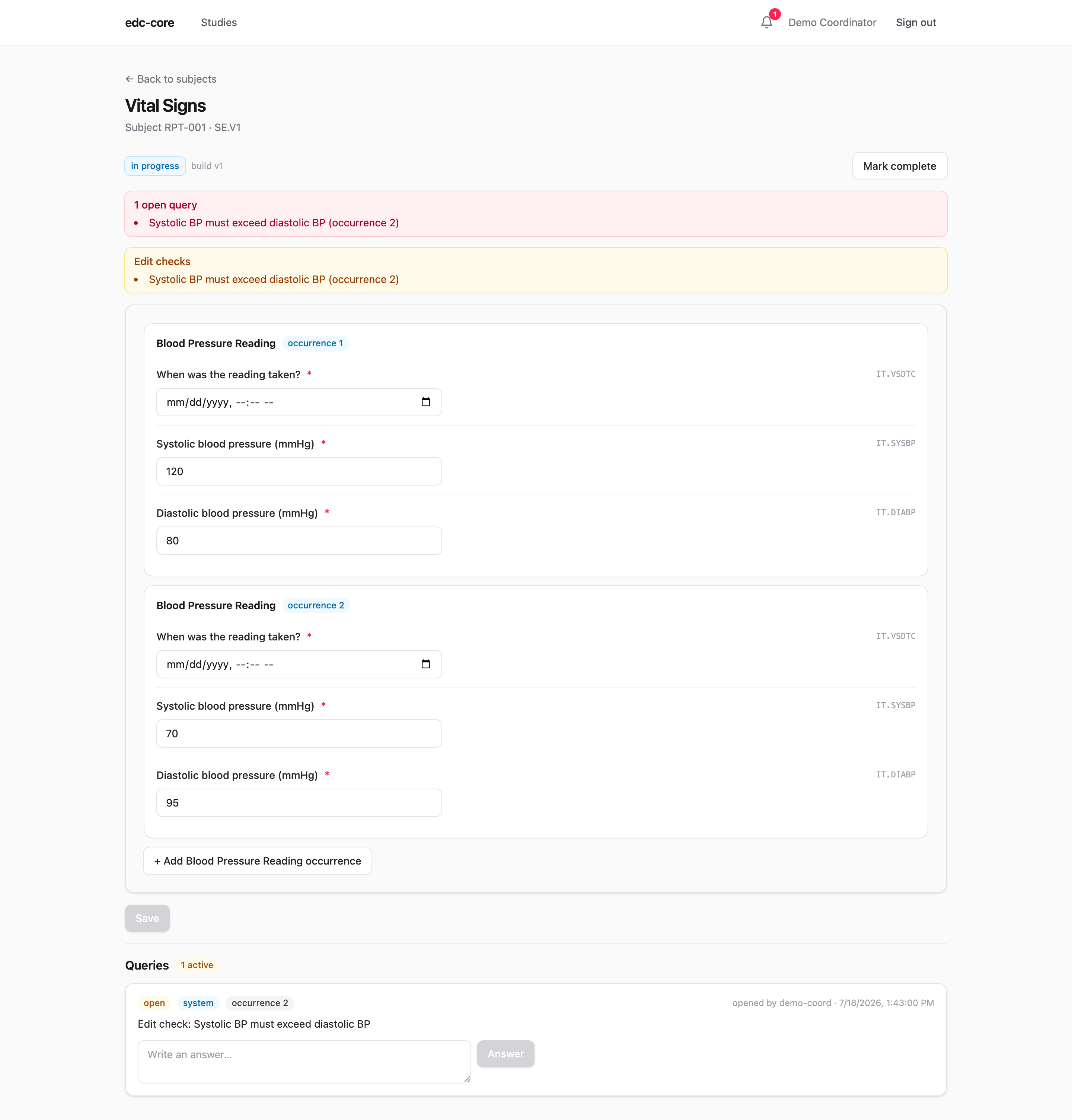
Item groups marked Repeating in the study build (e.g. multiple blood-pressure readings in one visit) render as a stack of occurrences with an add occurrence button. Each occurrence’s values are stored and versioned independently, edit checks are evaluated per occurrence, and a failing check opens a system query pinned to that occurrence: fixing occurrence 2 never touches occurrence 1. Analytics snapshots carry the occurrence as item_group_repeat_key in the dataset grain.
Workflow states
Every form instance moves through a server-enforced state machine:
not started → in progress → complete → verified → signed → lockedTransitions are role-gated (a monitor verifies, an investigator signs) and validated server-side: the UI only offers actions the API would accept. Reopening a signed form for correction invalidates its signature and returns it to the editable state, leaving the signature record and its invalidation in the audit trail.
Blinded items
Items flagged Blinded in the study build are visible only to roles holding the data.unblind permission, by default the site-facing roles (investigator, data entry, admin). Everyone else, monitors included, sees a locked field: the item’s presence and entry status, but never its value, and the same mask follows the data into casebooks, audit review, and analytics snapshots. Blinded values are still captured, versioned, and audited normally: blinding scopes visibility, not collection. What each role sees, the break-the-blind workflow, and the governance around data.unblind grants are on the blinding page.
System queries from edit checks
When a saved value fails an edit check, edc-core opens a system query on that item automatically. The query thread lives on the form (visible in the screenshot above) and in the study-wide queries dashboard. Correct the data and the system query closes itself; the resolution is audited like everything else. Manual queries work the same way; see Review workflows.