User administration
Accounts and access are administered in two places: a system-wide Users page for account lifecycle, and a per-study Team page for role grants. Both write every action to the audit trail.
Accounts
System administrators manage accounts at Users (linked from the Studies page). Accounts are deactivated, never deleted: 21 CFR Part 11 requires signatures to stay attributable to one individual indefinitely, so a departed user’s account is switched off but their name remains on everything they signed.
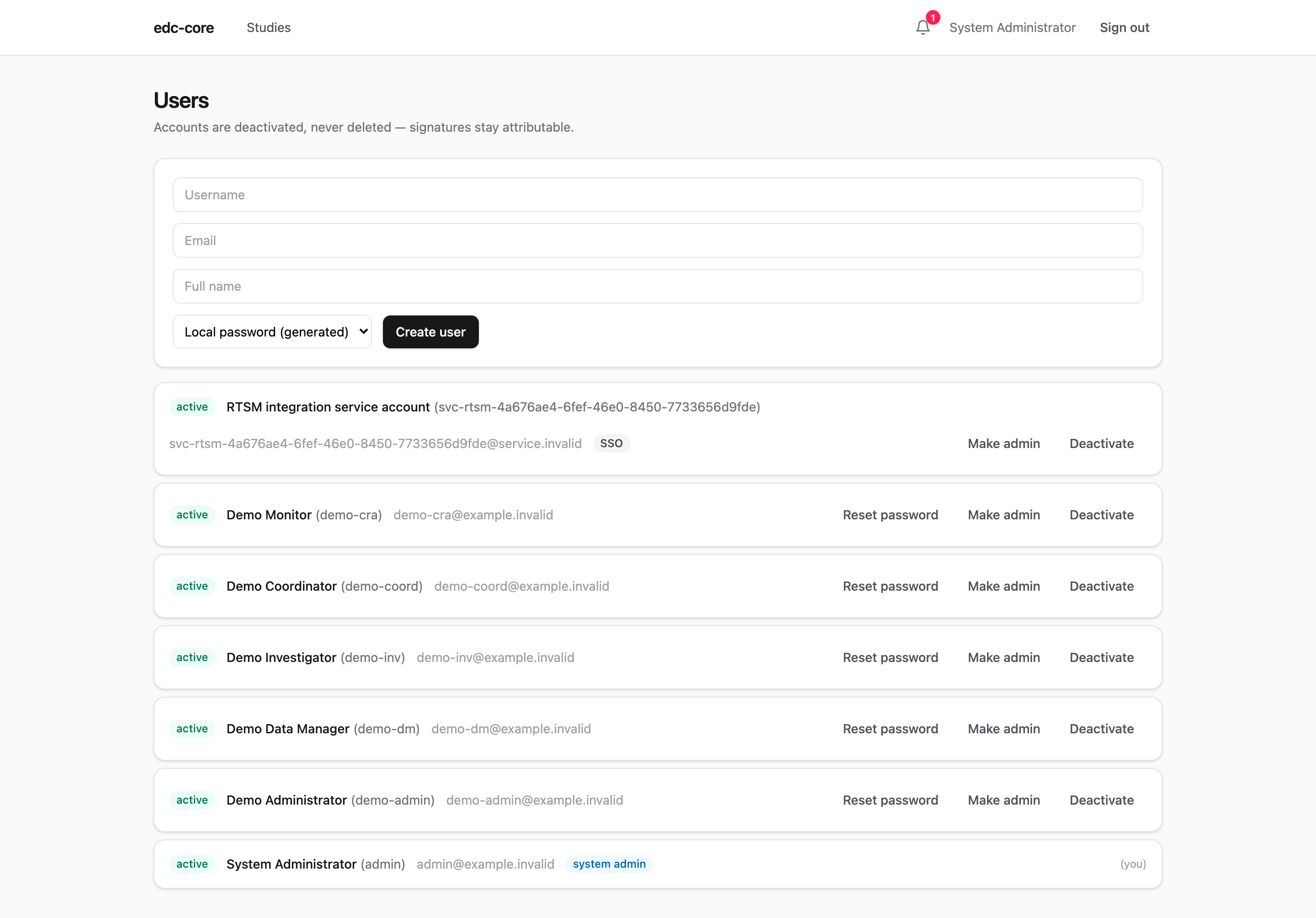
Creating an account takes a username, email, full name, and one choice:
- Local password: edc-core generates a temporary password and shows it exactly once. Share it with the user securely; it is not stored, logged, or recoverable. The user must replace it at first sign-in (below).
- SSO: no local password is created. When the user first signs in through your identity provider, the account links automatically by verified email.
Temporary passwords
A password issued by an administrator (at account creation or reset) is a temporary credential: the session it opens can reach nothing but the change-password form, enforced server-side, until the user sets a password only they know. Administrators never know a user’s working password at any point.
Any signed-in user can change their own password from the menu bar (click your name). Changing a password signs out every other session of the account.
Lockouts, resets, and deactivation
- Unlock clears a failed-login lockout immediately (the lockout would also expire on its own).
- Reset password issues a new show-once temporary password, signs the user out everywhere, and reimposes the first-sign-in change requirement. SSO-only accounts have no password to reset; manage those credentials in your identity provider.
- Deactivate blocks sign-in and revokes every live session immediately: access ends when you click, not at the next session timeout. Reactivate restores sign-in; the account’s history is untouched either way.
Study teams
Each study has a Team page (linked from the study header). Every member of the study can see the team (who holds which role, at which scope, granted when and by whom), since that is their own delegation context.
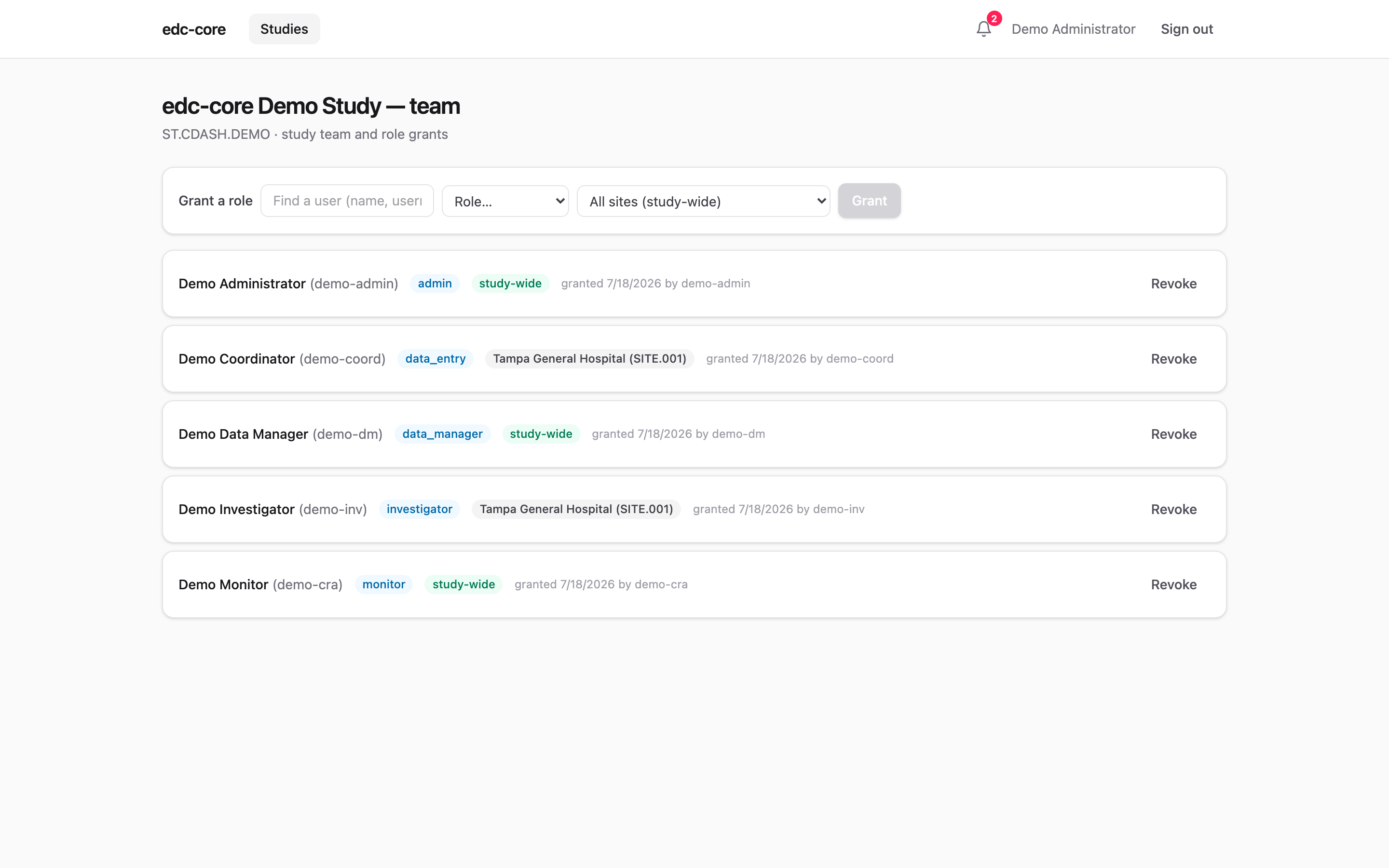 Changing the team requires the
 roles.grant permission (held by the admin role by default; system administrators can also grant, so a brand-new study’s first grant is reachable).
A grant is a role at a scope: either study-wide or narrowed to one site. Site-scoped grants only confer their capabilities for subjects at that site: a coordinator granted data_entry at Site A cannot enter data for Site B. The same role can be held at several scopes; an identical duplicate is refused. Revoking a grant takes effect immediately, and revoke-then-regrant is an ordinary sequence (staff returning to a study); every cycle stays its own audited record.
Roles are the seeded catalog (admin, data_manager, investigator, data_entry, monitor, read_only); the rtsm_agent machine role is deliberately absent from the picker. Users are found by name, username, or email. The search requires roles.grant and returns only enough to pick the right person, so there is no browsable user directory.
System administrators
The system-admin flag (create studies, manage users and dictionaries) is separate from study-level roles: it deliberately confers no clinical capability. A system administrator cannot enter, verify, or sign data without an ordinary audited role grant. Toggling the flag is itself audited, and you cannot change or deactivate your own account. A second administrator has to do it, so a lone admin can’t lock the deployment out of administration.
The access log
System administrators have an Access log page (linked from the Studies header) recording every API request: who made it, from which address and client, against which path, and with what result, including unauthenticated attempts. Filter by username, IP address, path prefix, or status code, and export the current view to CSV for an inspection copy. Retention is your deployment’s call; the table is ordinary operational data, separate from the append-only audit trail.
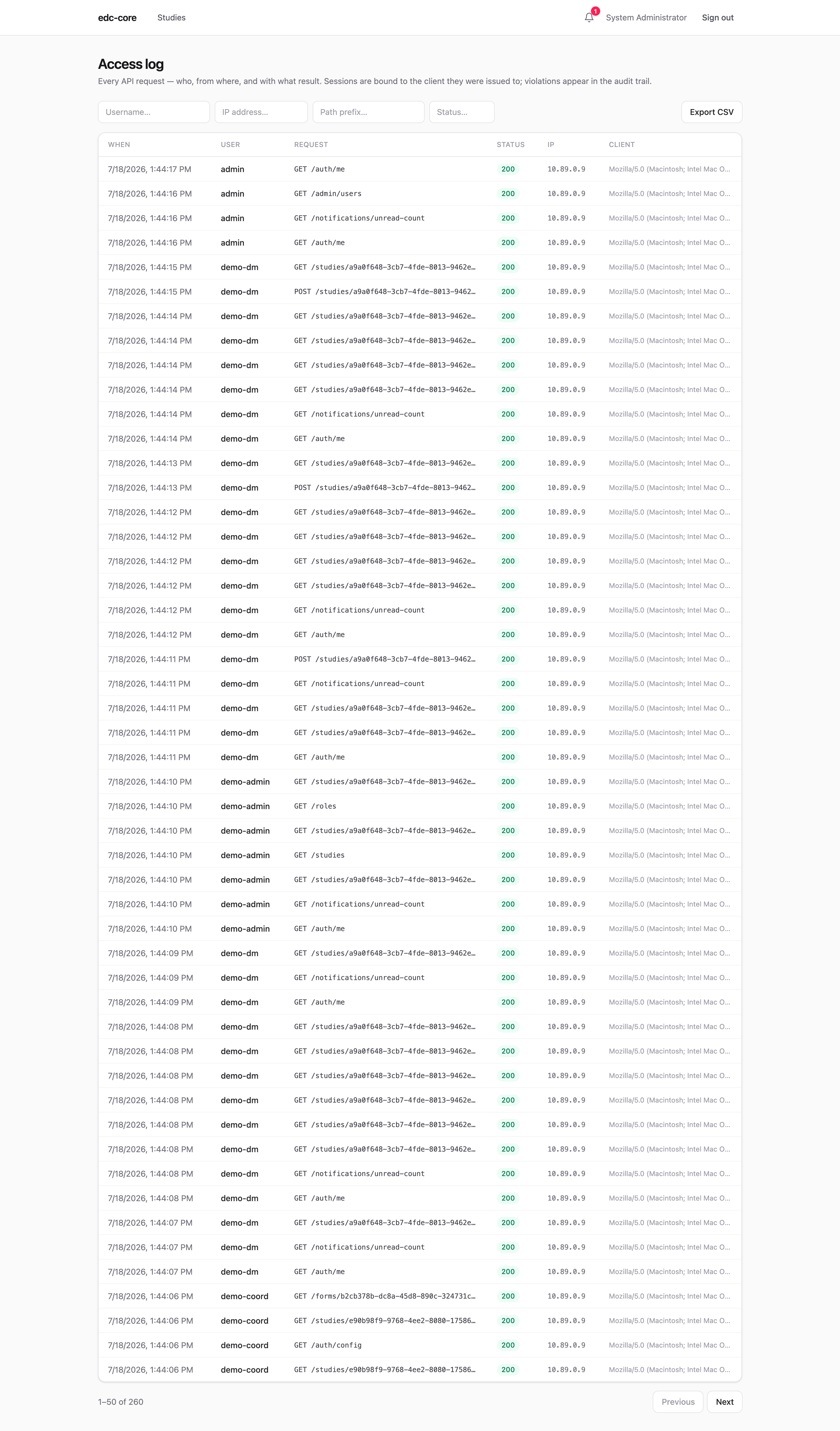
Sessions are also bound to the client they were issued to. A session token presented by a different browser than the one that signed in is treated as stolen: the session is revoked immediately and the violation recorded in the audit trail (auth.session_binding_violation). A change of IP address alone does not end the session (networks legitimately roam), but it is audited too (auth.session_ip_changed), so unusual access patterns are reviewable after the fact.
Security anomalies
What the access log and audit trail record, a background sweep also watches: bursts of failed authentications from one address, account lockouts, and session binding violations each raise a security anomaly. Findings notify system administrators and wait under Anomalies (linked from the Studies header) for review; acknowledging one, with a note on what was done, writes the recorded response to the audit trail.
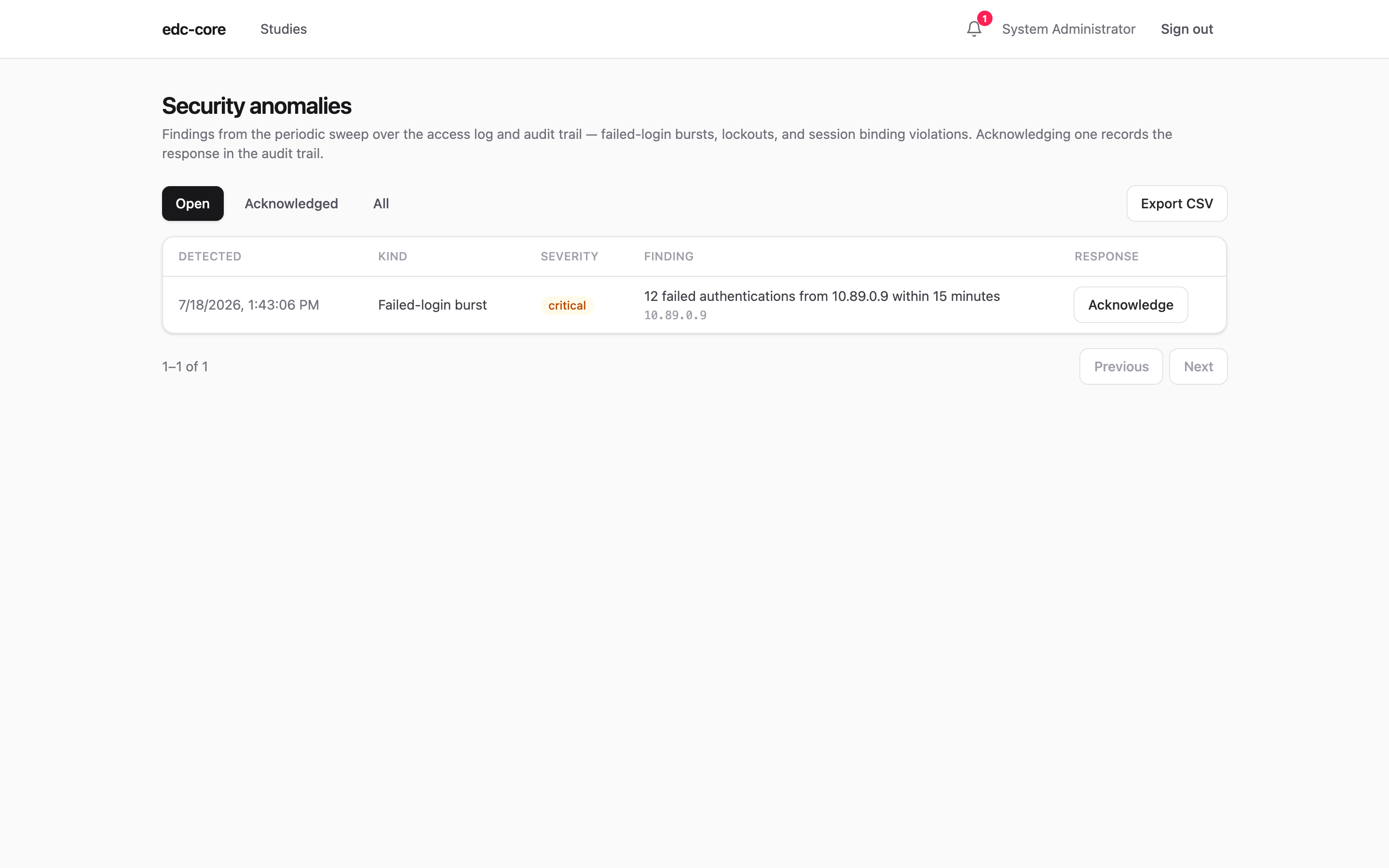
Detection thresholds and the operational side (what to put in your SOPs, how this relates to platform monitoring) are covered in the deployment guide.