Working with documents
Documents move through a simple loop: someone uploads a file, it waits in pending review, and an approval signature makes it current. This page walks that loop in the app, plus what to do when a document needs a new version.
Finding a document
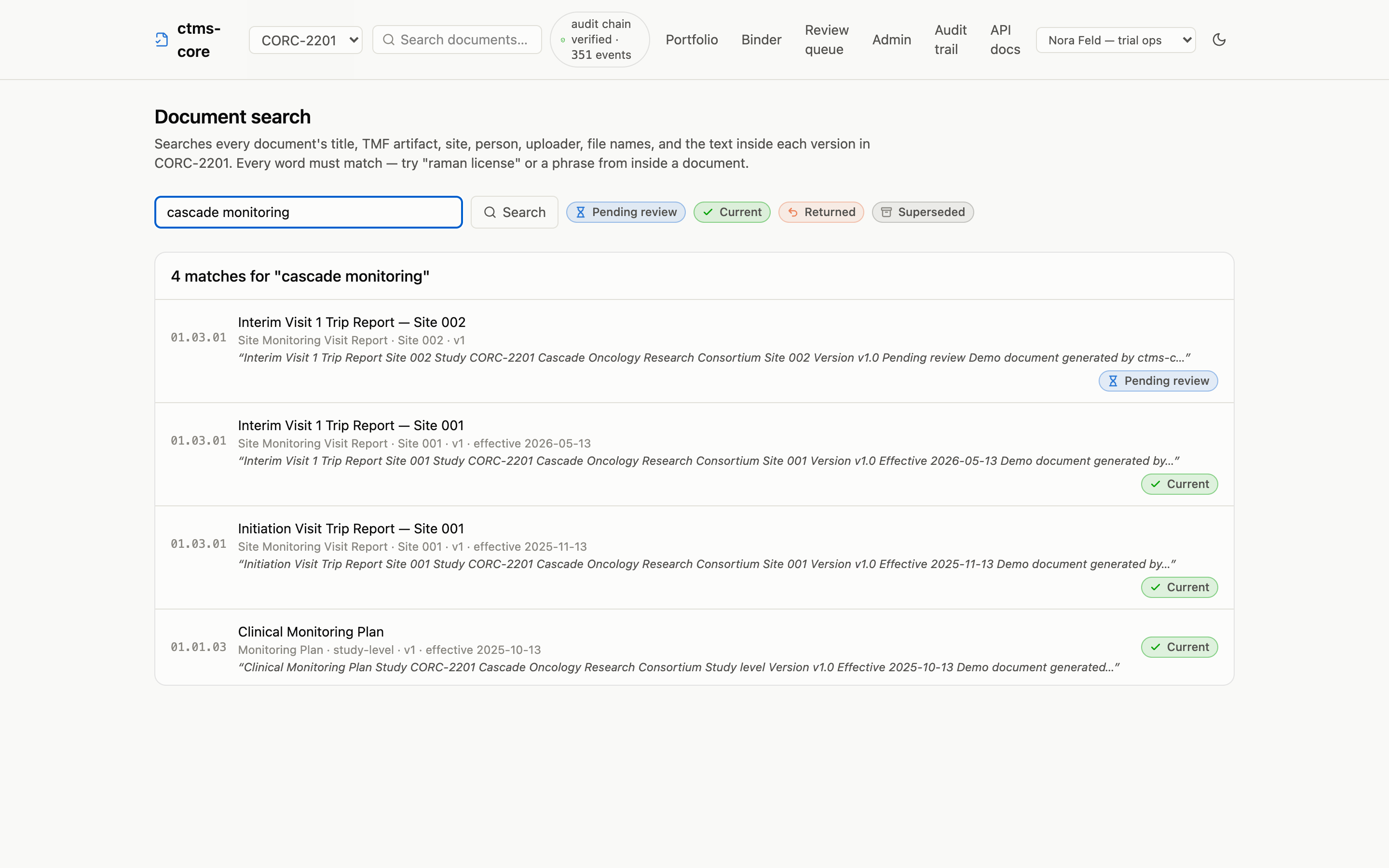
The search box in the header (or the search page it opens) looks across every document’s title, TMF artifact, site, person, uploader, file names, and the text inside the files themselves. Every word you type must match, which makes narrowing natural: “1572” lists every Form FDA 1572, “1572 003” is site 003’s, and a phrase you remember from inside the monitoring plan finds the monitoring plan. When the match came from inside a document, the result shows a snippet of the surrounding text. Scanned image-only PDFs are covered too: their pages are read by OCR, so a phrase from a scanned approval letter finds the letter. (OCR text is a machine reading of the scan, so a snippet from one may carry small misreadings; the download is always the record.)
Uploading a document
Uploads happen on the site page, right on the row that needs the file. Open the site (from the matrix or the enrollment card), find the requirement (the rows are grouped by TMF zone), and the rows marked Missing or Expired carry an Upload button.
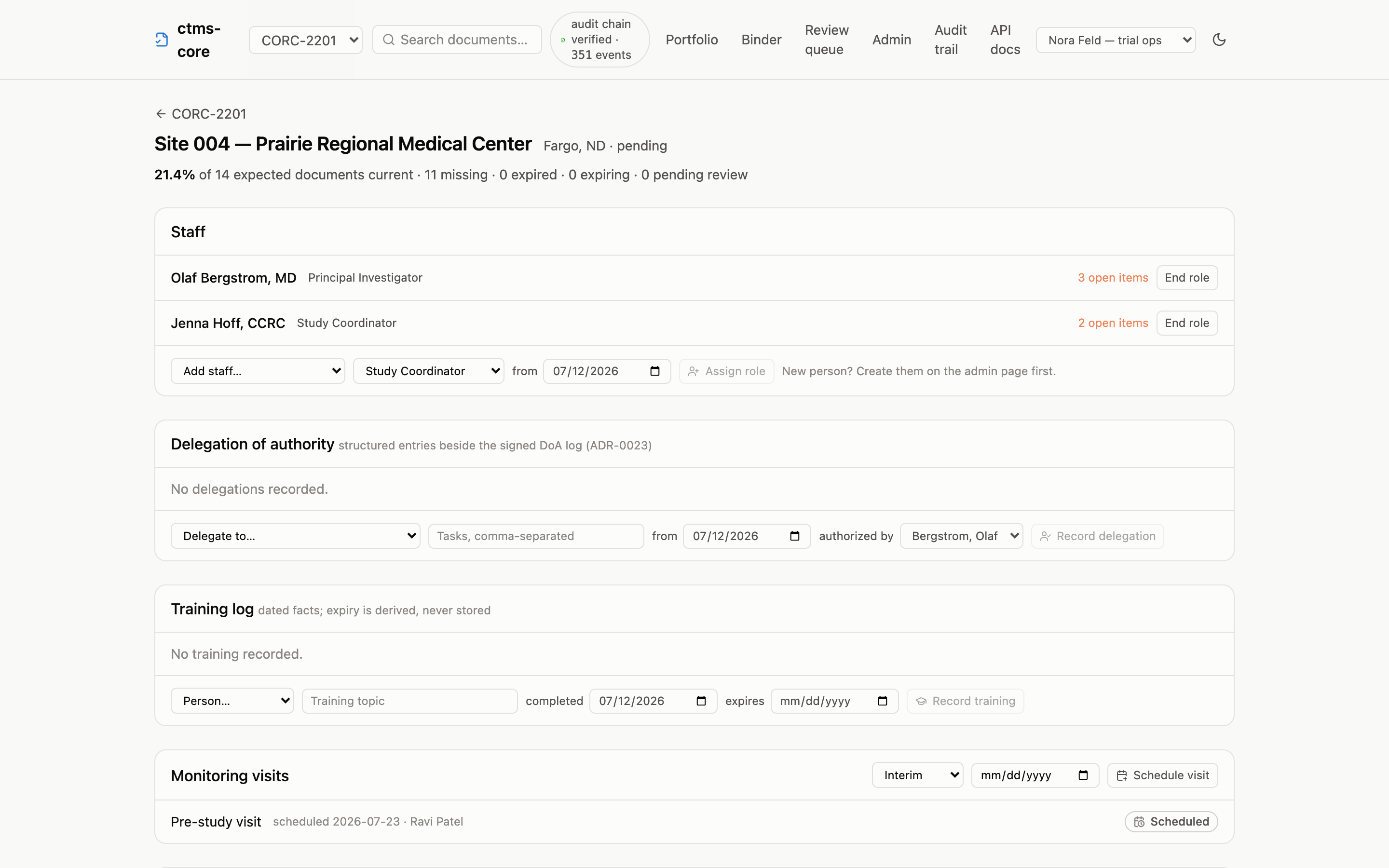
Pick the file and you’re done. The app knows which requirement, site, and person the row belongs to, so there’s nothing to classify and no folder to choose. The row flips to Pending review, and the document now waits for someone to approve it.
If the row is for a person (a CV, a medical license, a GCP certificate), the upload is filed to that person automatically.
What “pending review” means
A pending-review document is filed but not yet trusted: it doesn’t count as current anywhere until someone with approval authority signs it. This is the review step: open the document, download and read the file, and choose one of two outcomes: approve it, or return it for correction.
Approving and signing
On the document’s page, Approve & make effective starts the signature. The app first shows you exactly what signing records, then asks you to confirm:
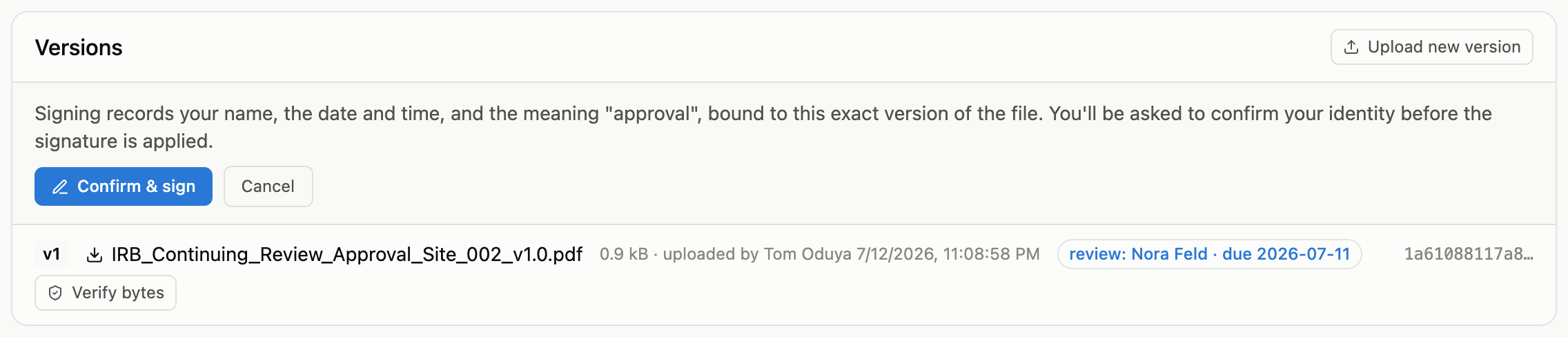
After you confirm, you’ll be asked to verify your identity; in a production deployment that means re-entering your credentials with the organization’s sign-in provider. This is deliberate, not a glitch: an electronic signature here is the real thing, so the system checks it’s really you at the moment of signing.
The signature records your name, the date and time, and its meaning (approval), and it is tied to the exact file you signed. If anyone ever swapped the file, the signature would no longer match. The document becomes Current, and every count and matrix cell that depends on it updates immediately.
Returning for correction
When the file is wrong (the unsigned copy, a cut-off scan, the letter for the previous protocol version), don’t approve it and don’t chase the uploader by email. Return for correction, next to the approve button, asks for a reason and sends the version back:

The reason you give becomes part of the document’s permanent record: the uploader sees exactly what needs fixing, and so does anyone reading the history years later. The document shows Returned everywhere (the site page’s row grows an upload button again), and the returned version is closed to approval for good: the fix is always a corrected version, which sends the document back through review.
Returning takes the same authority as approving. It isn’t a signature, so there’s no identity re-check, just the reason and one click.
The review queue
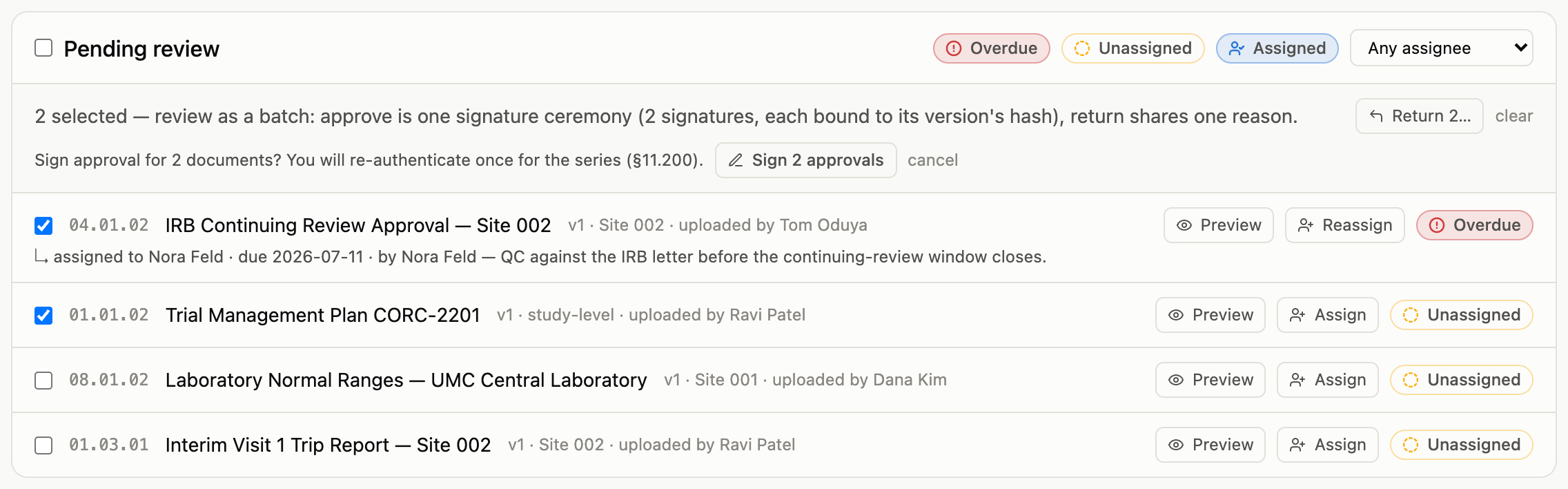
The Review queue link in the header lists everything awaiting review in one place: each pending document, who it’s assigned to, and whether it’s overdue. Assign a pending version to a named reviewer with an optional due date (the reviewer must hold approval authority; the app checks). Reassign by assigning again, and the newest assignment stands.
There is no “mark as done” anywhere, on purpose. Approving or returning the version is what completes the assignment and clears the row. The queue is computed from the documents themselves, so it can never show stale work. Filter by reviewer for a personal worklist, or by status to see what’s overdue; overdue assignments also appear in the emailed digest.
Read before you sign without leaving the page: Preview on any row opens the file right there in the queue: the exact bytes your signature would be bound to, not a thumbnail or a converted copy stored somewhere. One preview is open at a time, so working through the queue reads like paging through the stack; PDFs, images, and plain text render inline. Word documents and Excel workbooks render too, converted to HTML in your browser from those same bytes. The panel says “the downloaded file is the record,” and it means it: nothing derived is kept anywhere. Anything else (legacy .doc, presentations) offers a download. Close it, tick the box, move on.
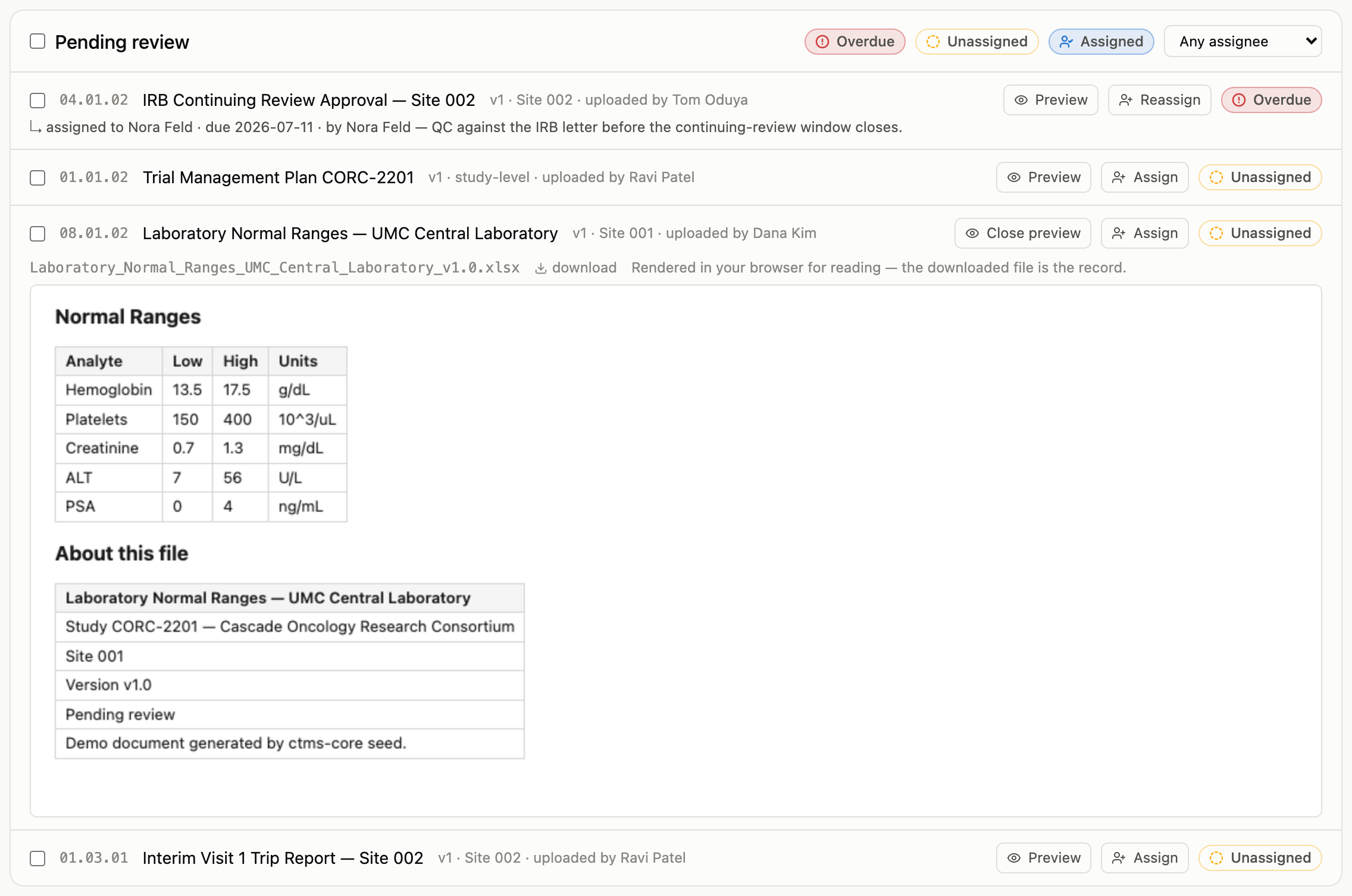
Review a batch by ticking the checkboxes (or the select-all next to the heading). Approving the selection is one signature ceremony for the series: you re-authenticate once, and every selected version gets its own signature bound to its own file; the audit trail shows N signatures, never one signature waved over N documents. Returning the selection shares one documented reason. If anything in the selection can’t be reviewed (already returned, superseded mid-review, not yours to approve), the whole action refuses and lists exactly which rows to untick. This is how a partner TMF imported over the exchange standard gets reviewed without 74 separate sign-ins.
Uploading a new version
When a document needs an update (an amended protocol, a renewed license), you don’t delete anything. Open the document and use Upload new version in the Versions card:

The new version joins the history and the document goes back to Pending review until the new version is approved. Every prior version stays downloadable forever, and the signatures on old versions remain attached to exactly what was signed.
Two things you won’t find, on purpose:
- No delete button. Versions can’t be deleted or replaced; that’s a regulatory property enforced by the database itself. An upload mistake is fixed by uploading the right file as the next version.
- No new-version button on trip reports. Visit documents belong to their visit; each visit’s report is its own record, uploaded from the visit page.
Documents filed by other systems
Not every upload comes from a person. Connected systems (an electronic data capture system, for example) can file documents into the binder automatically. A version filed this way looks like any other in the Versions card, with one addition: a small chip reading filed by and the system’s name, so the file’s origin is never a mystery.
Automated filings get no special treatment. They land in Pending review exactly like a hand upload, and a person with approval authority still reads and signs before anything counts as current. The connected system itself can never sign or approve; see who can do what.
The audit trail, briefly
Every document page ends with its audit trail: every insert, update, and signature, who did it, and when, written automatically by the database. The audit chain verified badge in the app header, and the study-wide audit page it links to, are the same record across the whole system.
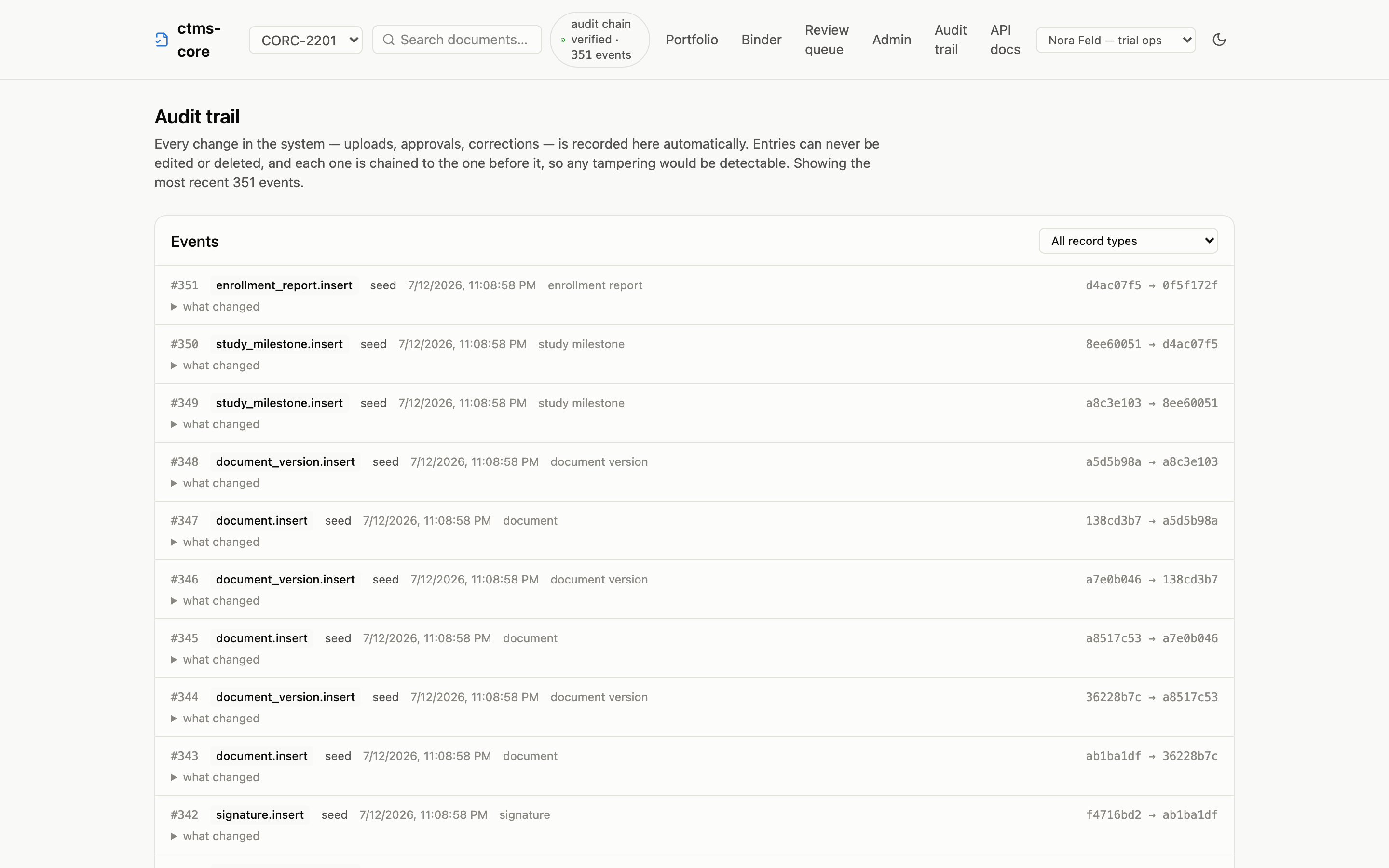
You never write to the audit trail and you can’t edit it; it simply accrues. If an auditor asks “show me everything that happened to this record,” this page is the answer.